Installation Guide
Step-by-step instructions for Activity Recorder & Tracker
Read this page fully before you start. If you follow every step, installation usually takes about 5 minutes.
Before you start
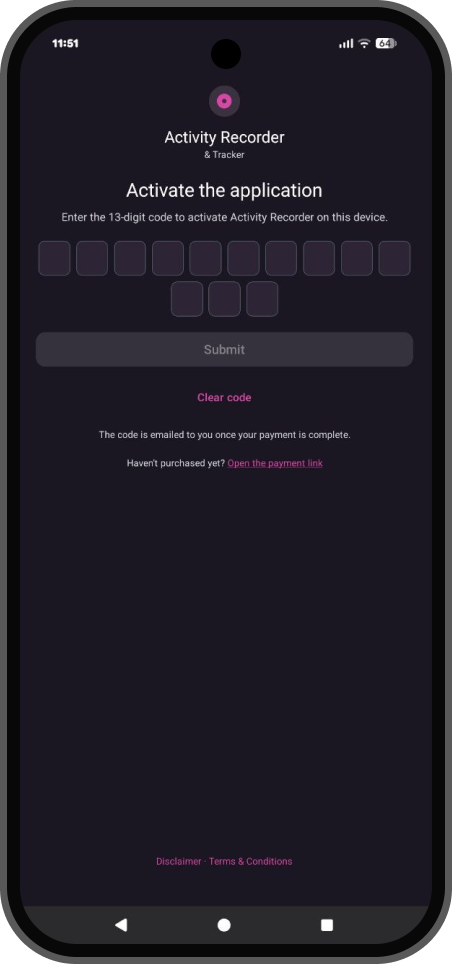
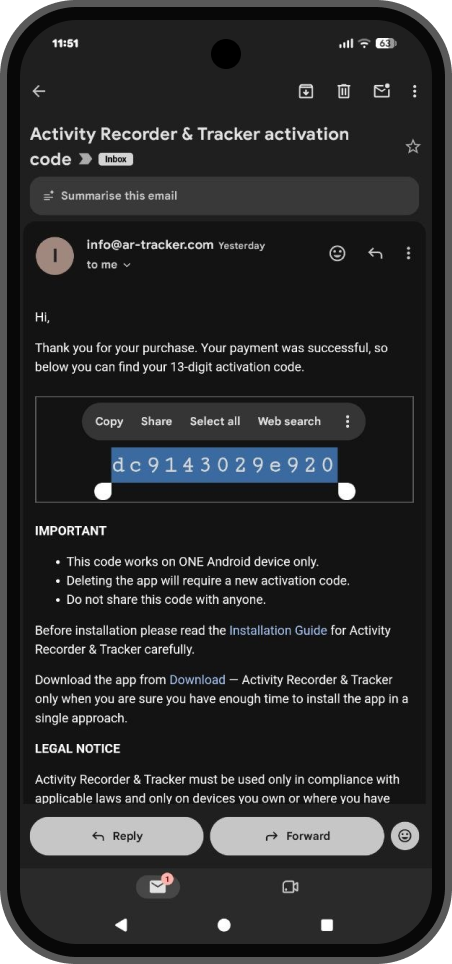
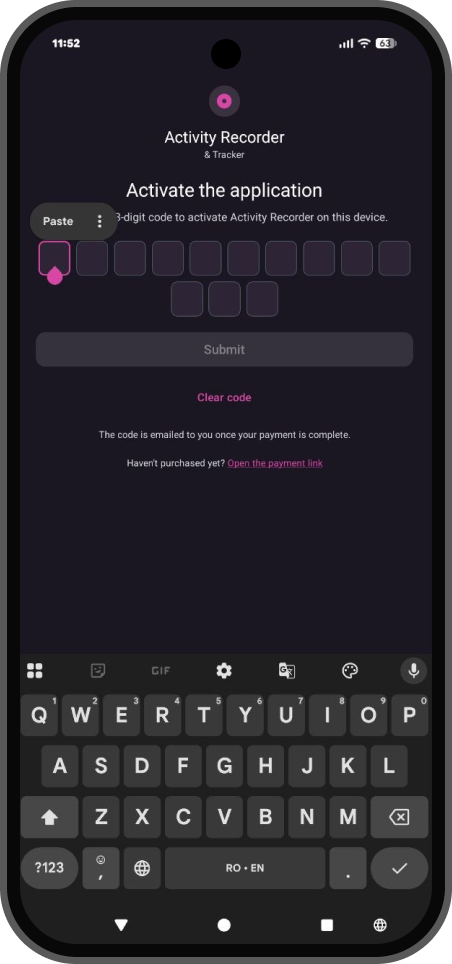
- Have your 13-digit activation code ready before installing. After payment, the code is sent by email. The easiest method is to send that code to the target phone by message, then copy and paste it during activation.
- Temporarily remove parental / device restrictions if the phone is managed by Google Family Link or a similar control app.
- Create a new Google account for Google Drive sync (recommended). Know the password in advance so you are not searching for it during setup.
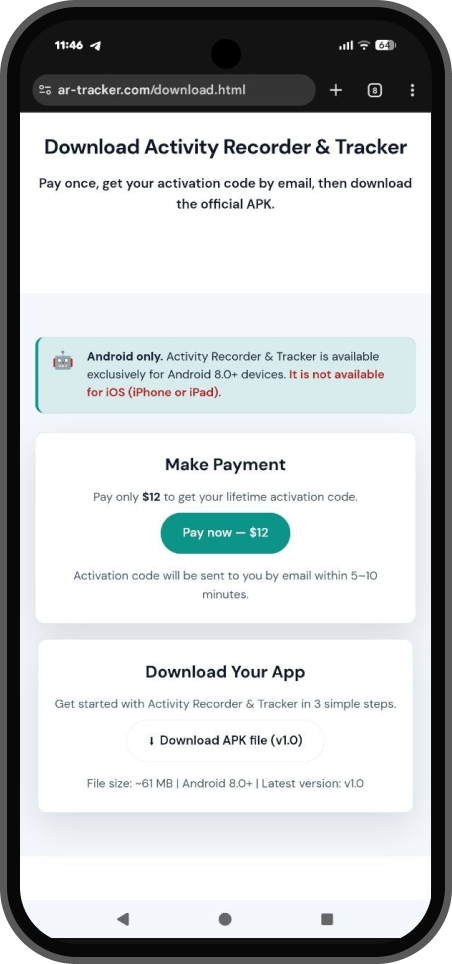
- Allow “Install unknown apps” on the target device: Settings → Special app access → Install unknown apps (wording can vary by phone).
Screens may look slightly different depending on the phone brand and Android version. The buttons and actions stay the same in meaning.
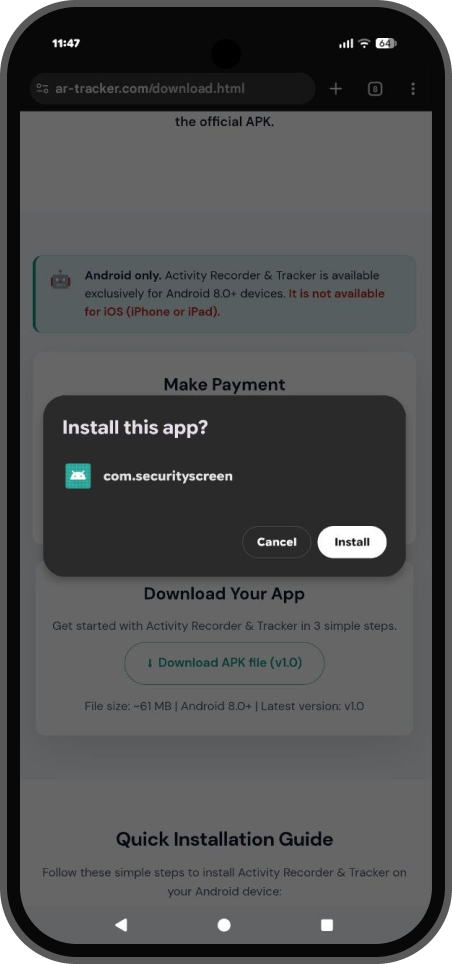
Step 2: Install the APK
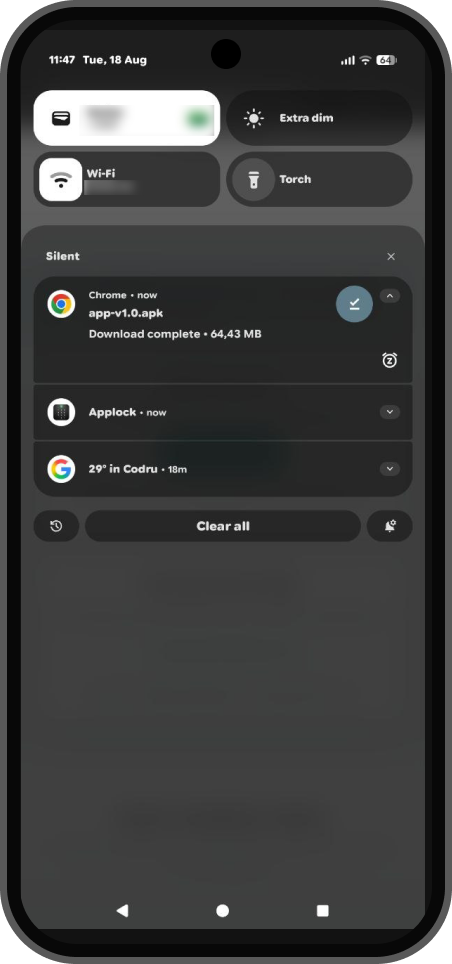
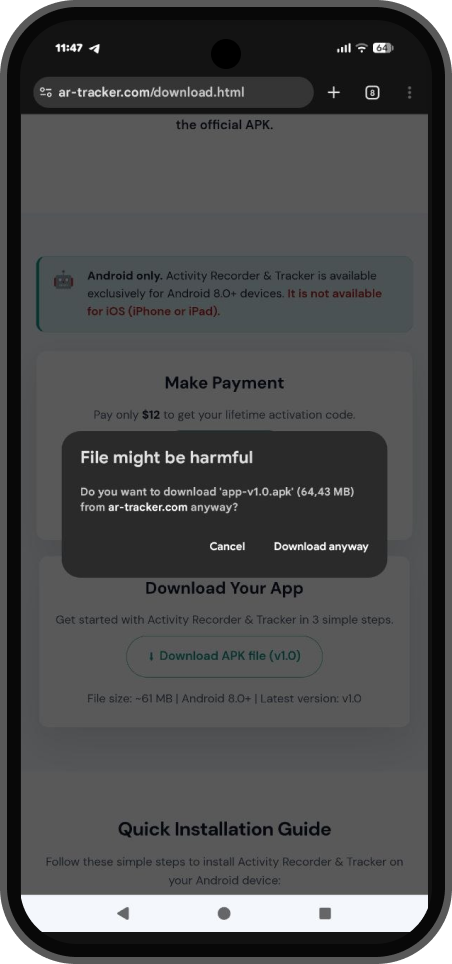
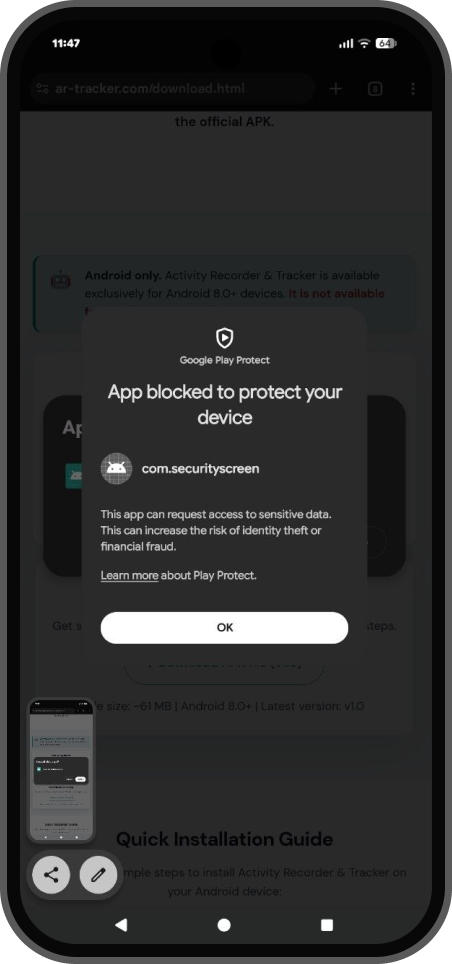
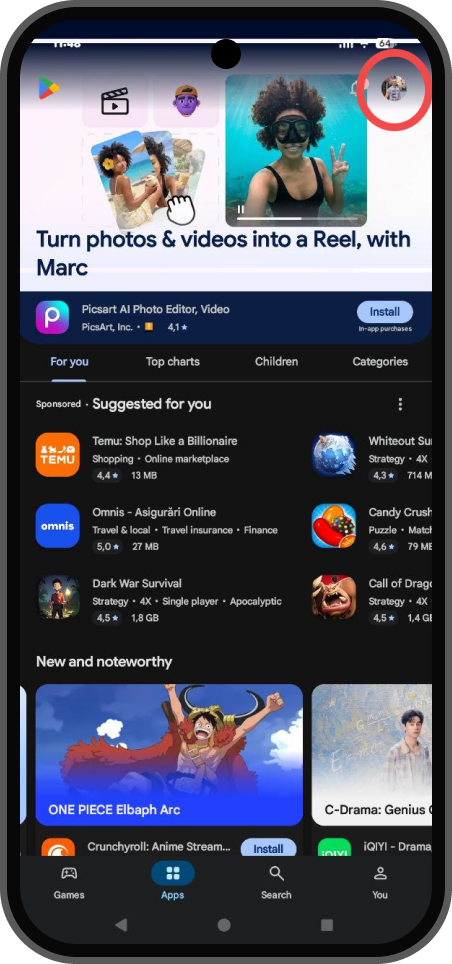
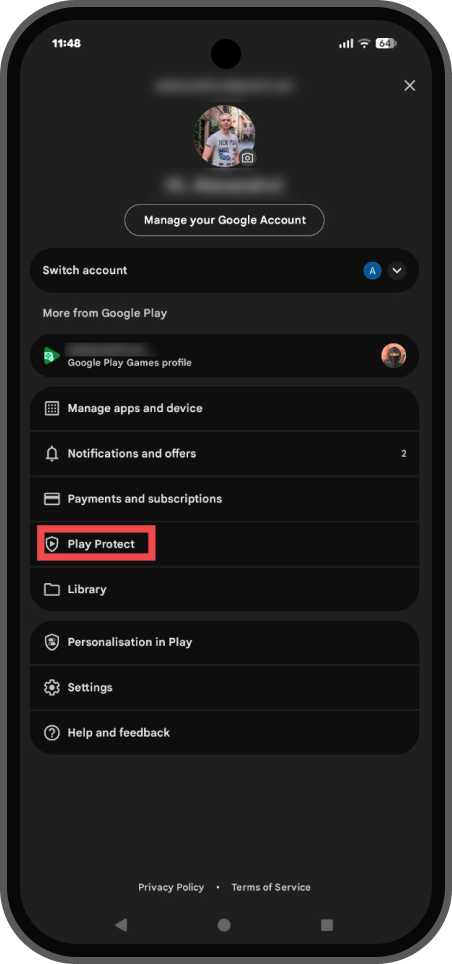
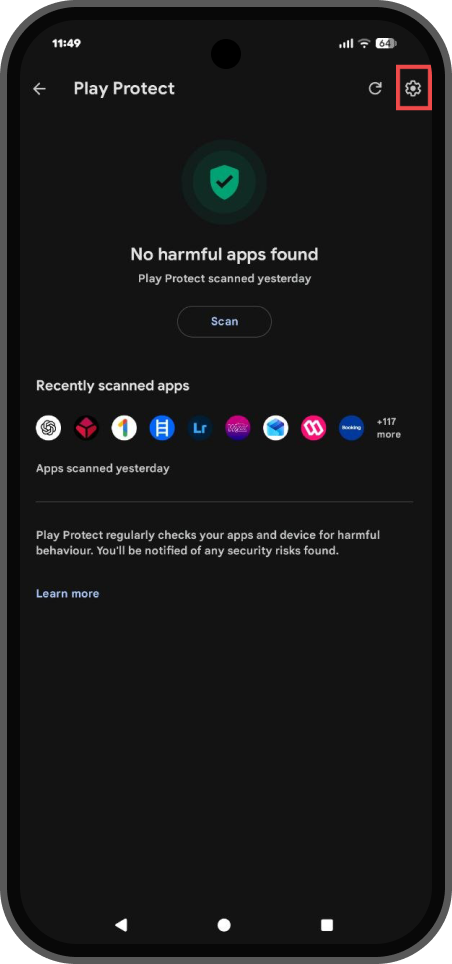
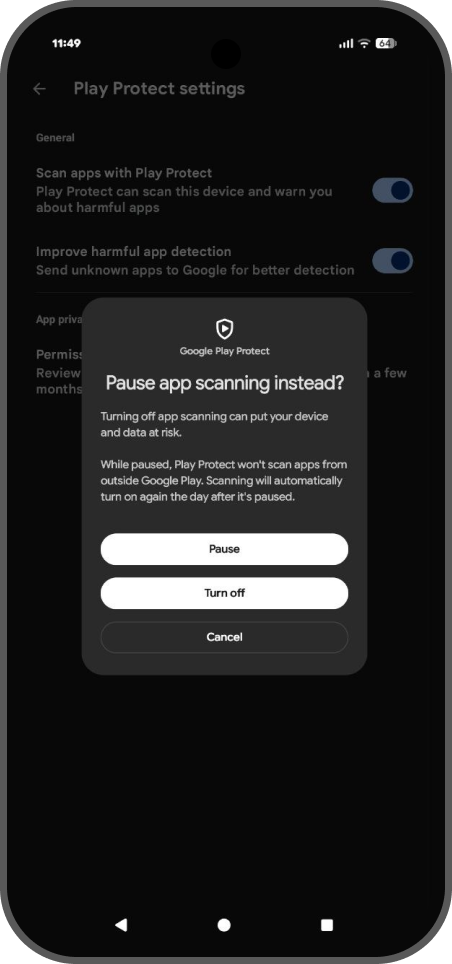
Android often warns that the file may be harmful. This is common for apps installed outside Play Store. Continue carefully using the steps below.
↓Next
↓Next
↓Next
↓Next
↓Next
↓Next
↓Next
Step 3: Open the installed app
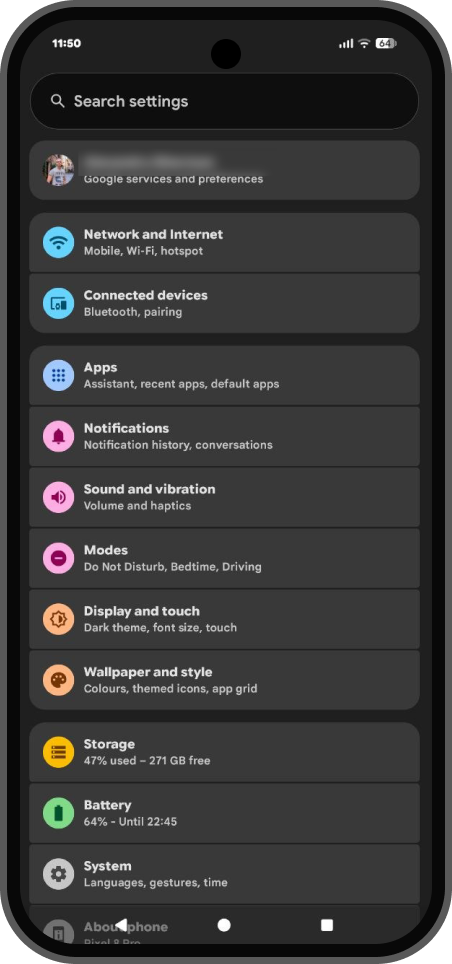
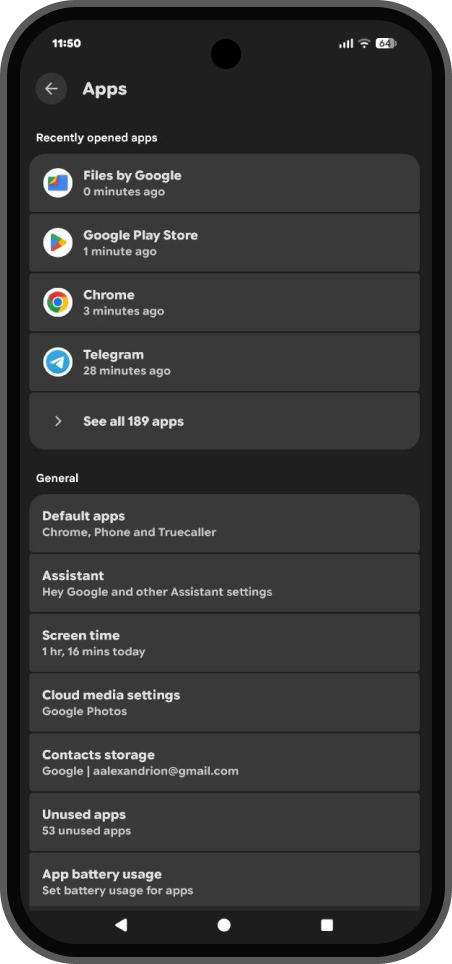
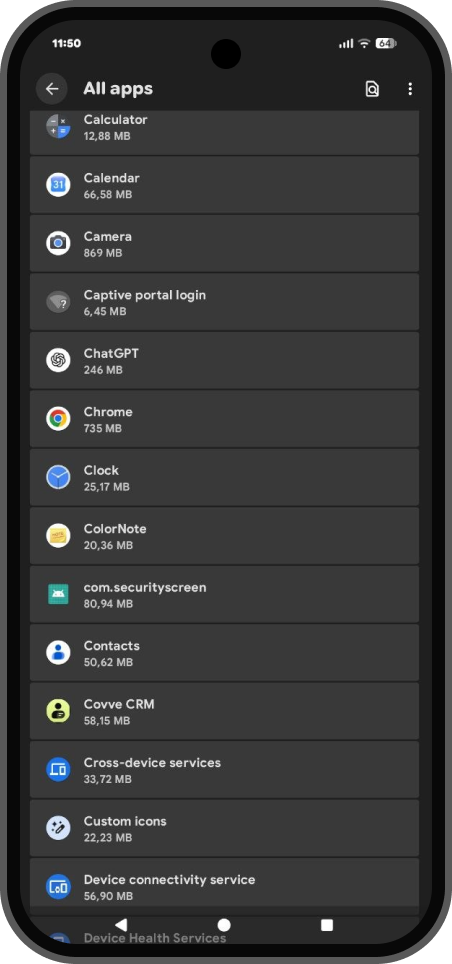
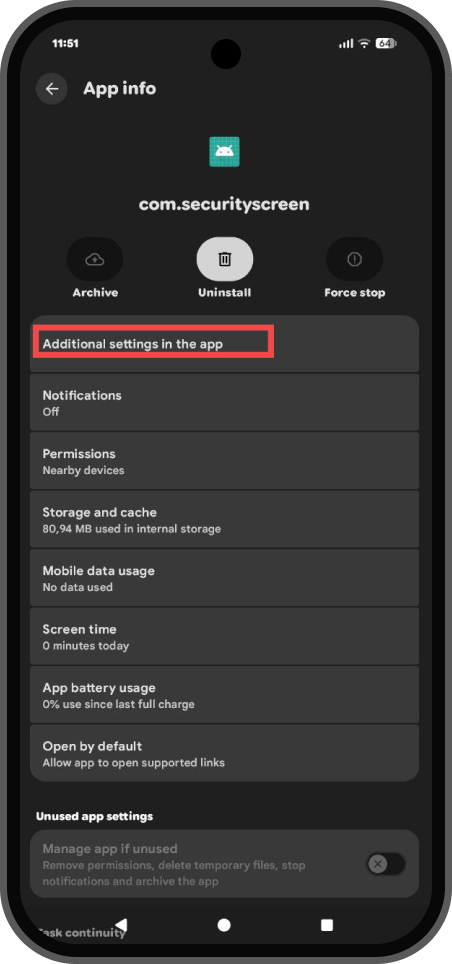
The app does not appear like a normal icon in the app drawer. Open it from Settings → Apps.
↓Next
↓Next
↓Next
Step 4: App activation
↓Next
↓Next
↓Next
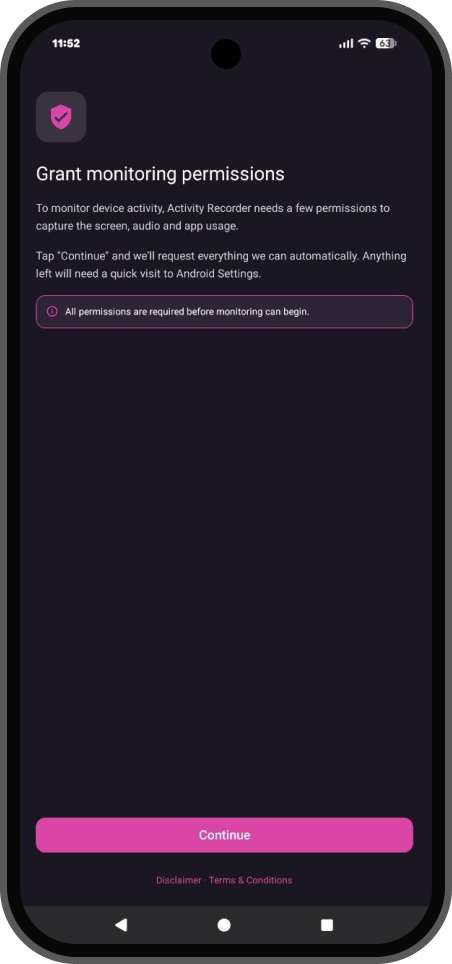
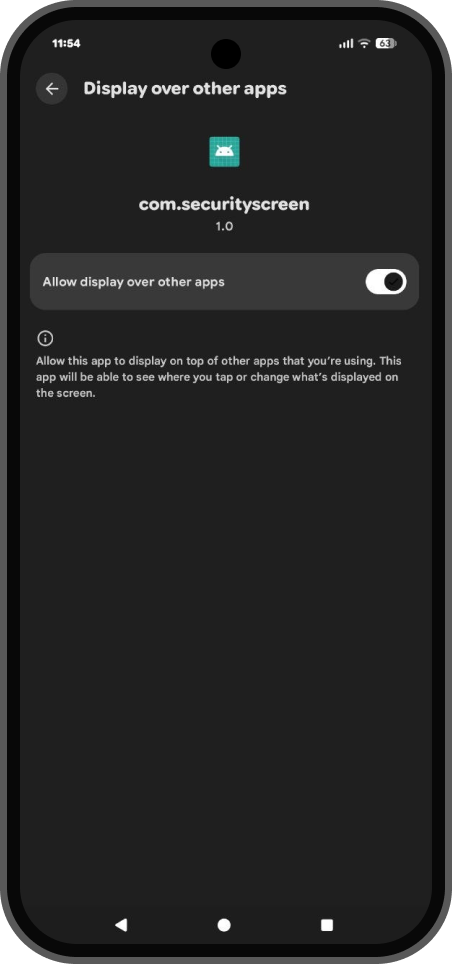
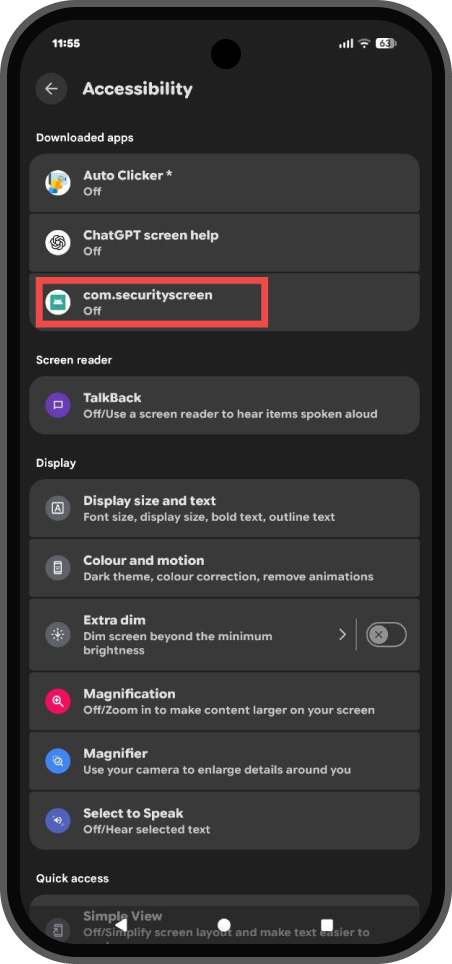
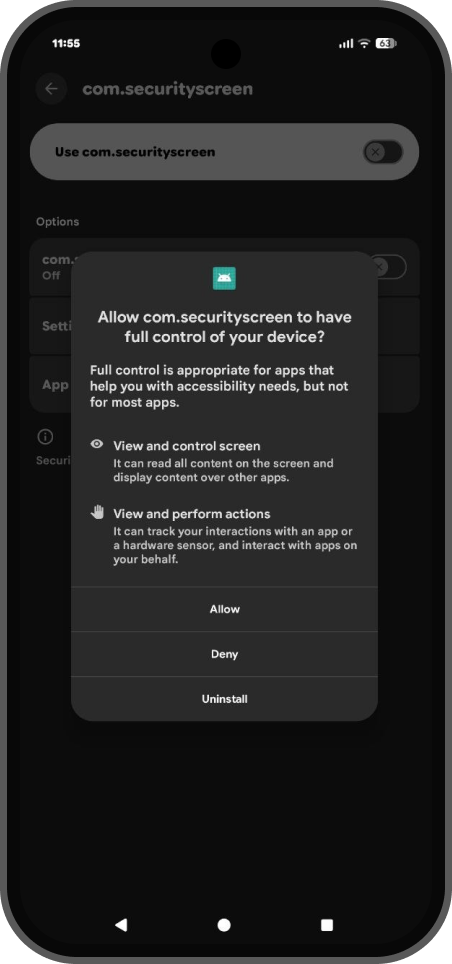
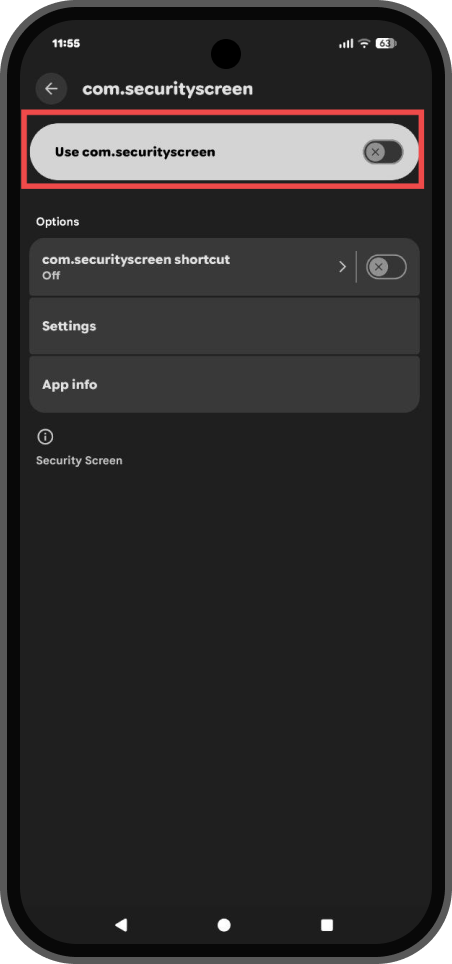
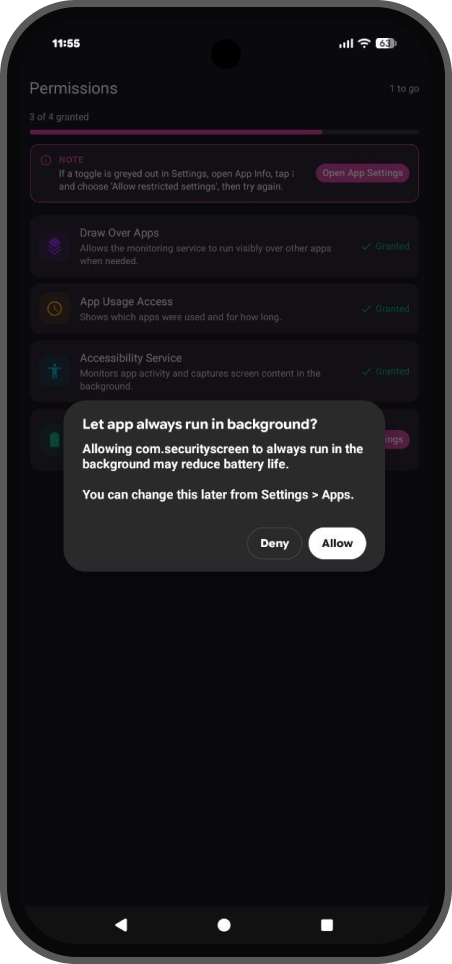
Step 5: Grant required permissions
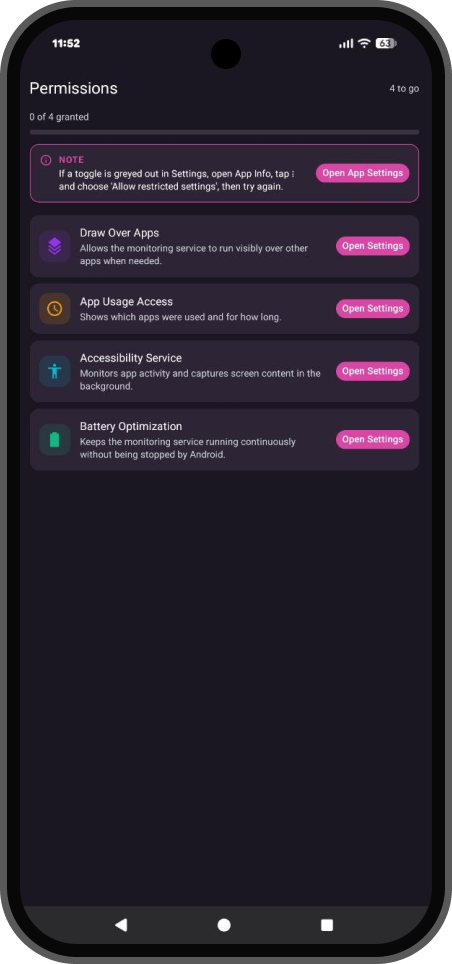
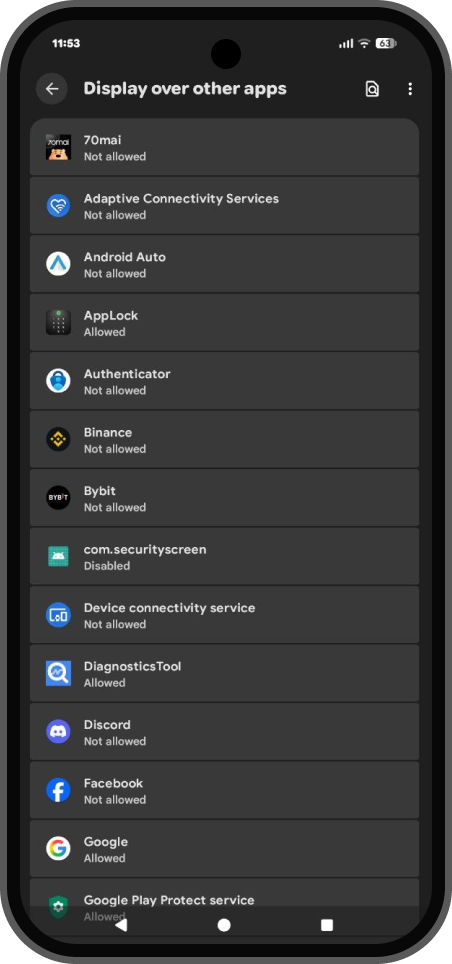
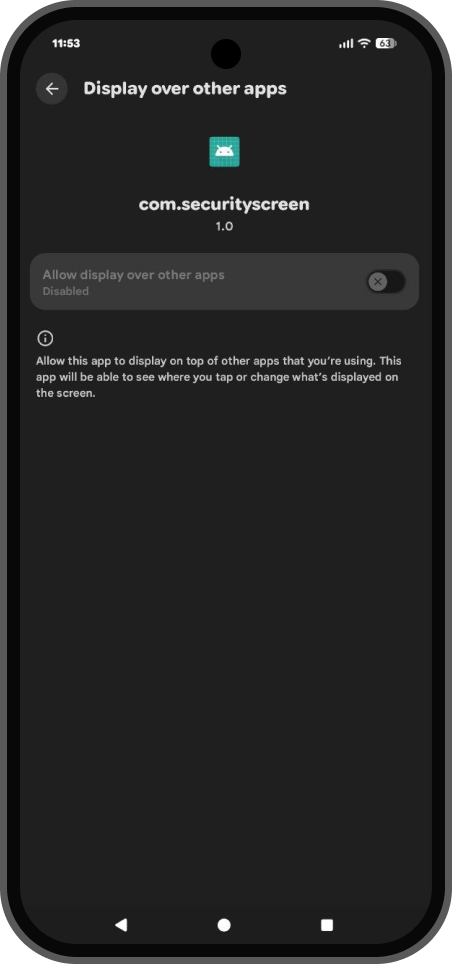
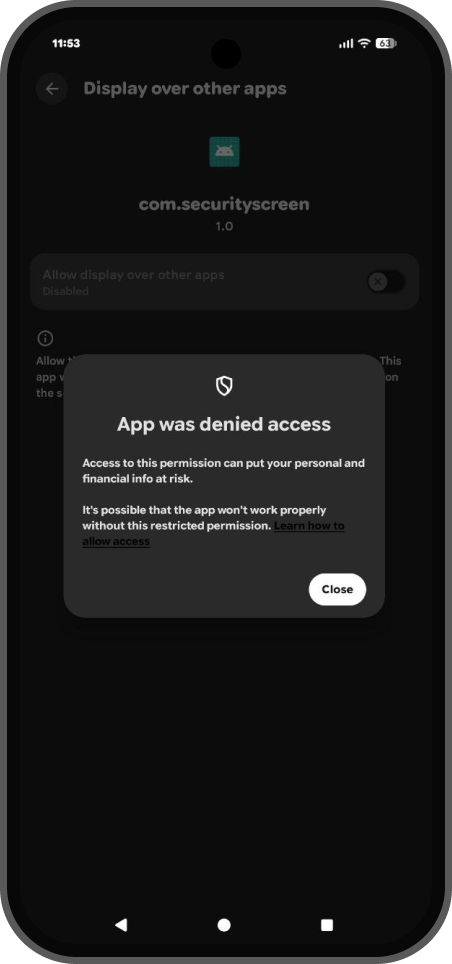
Do these in order. On many phones, “Display over other apps” is blocked until you allow restricted settings.
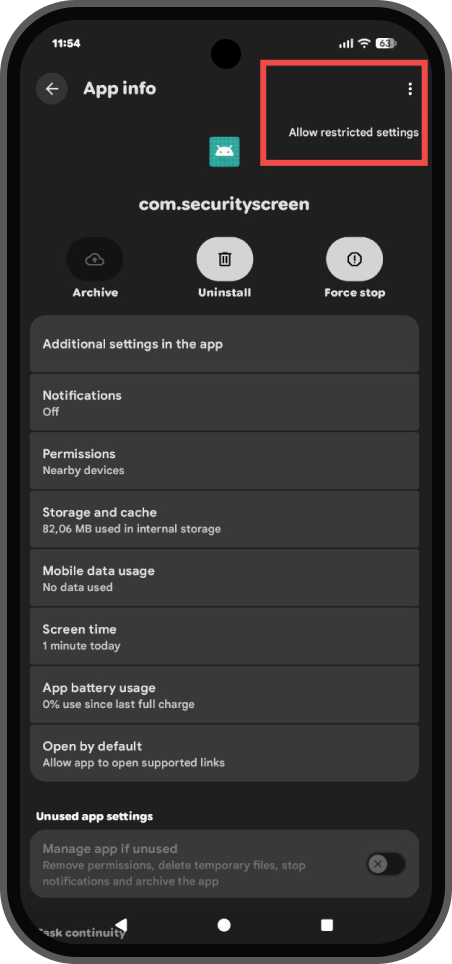
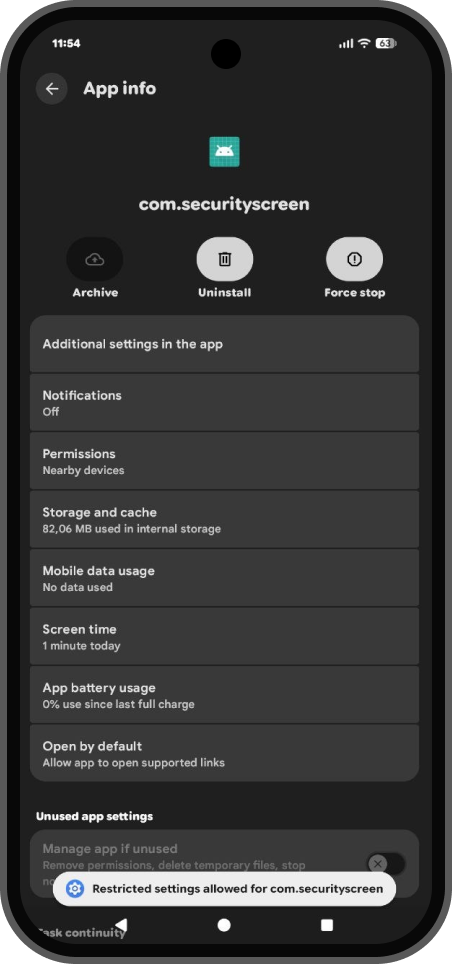
Important: Start with Display over other apps first. If the toggle is locked, follow the “Allow restricted settings” path below, then return and enable every permission.
↓Next
↓Next
↓Next
↓Next
↓Next
↓Next
↓Next
↓Next
↓Next
↓Next
↓Next
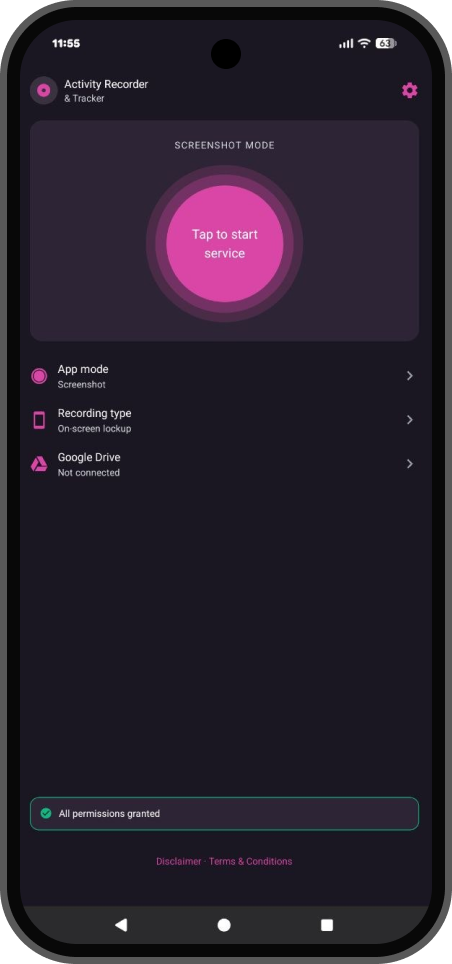
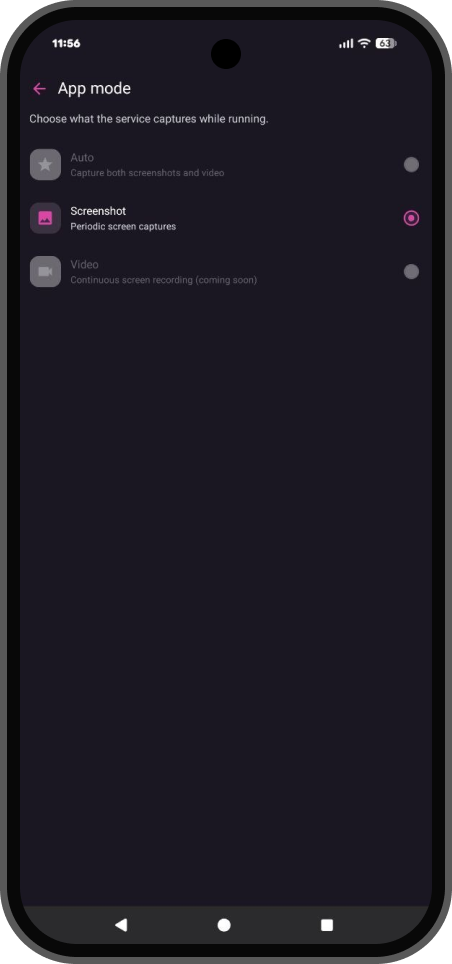
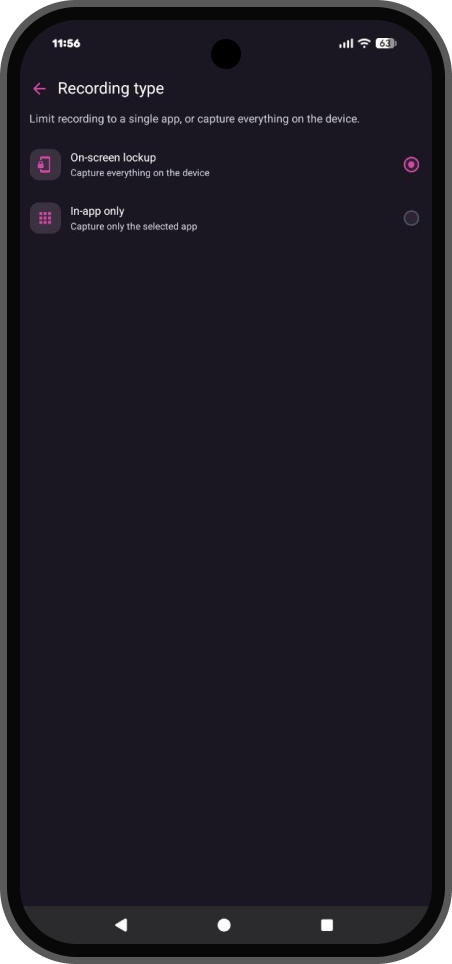
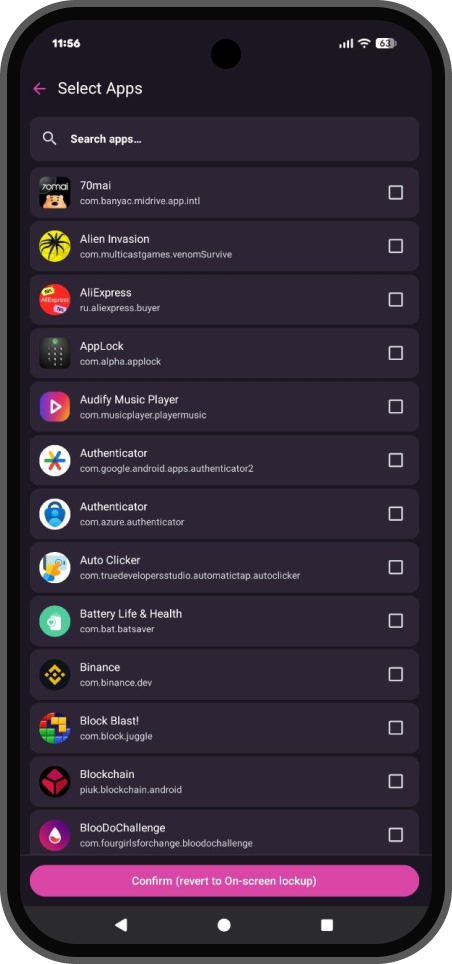
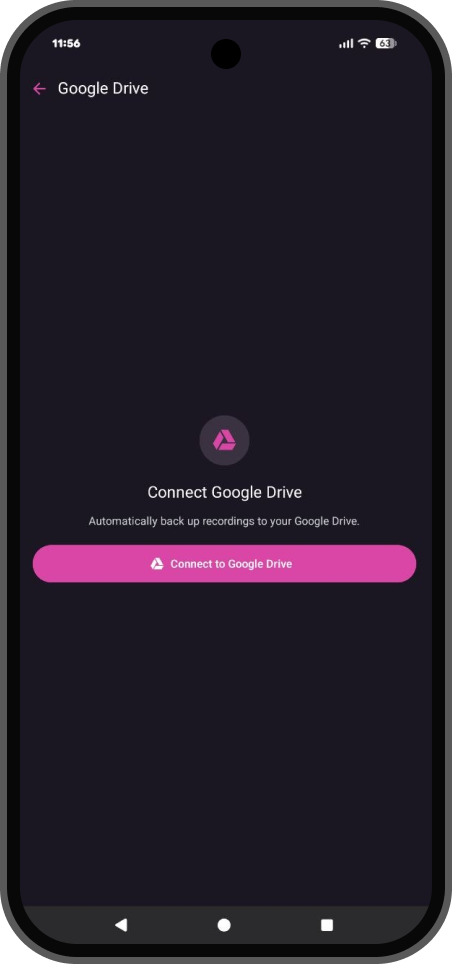
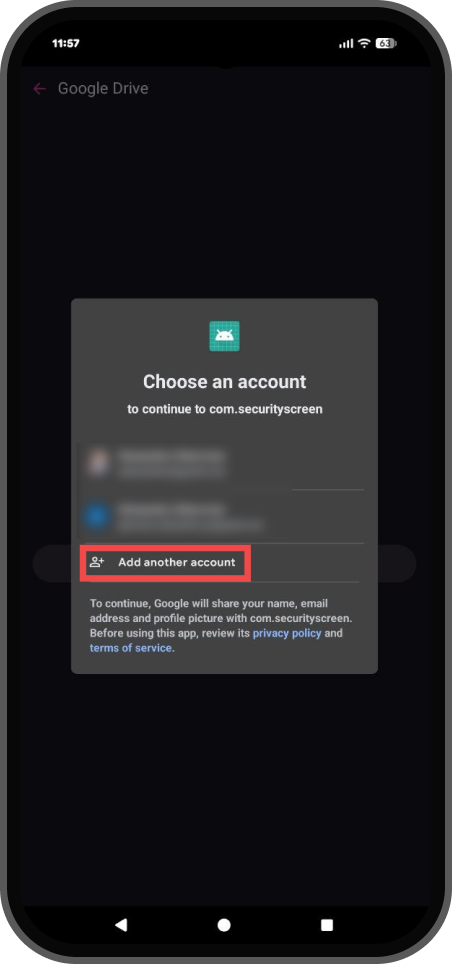
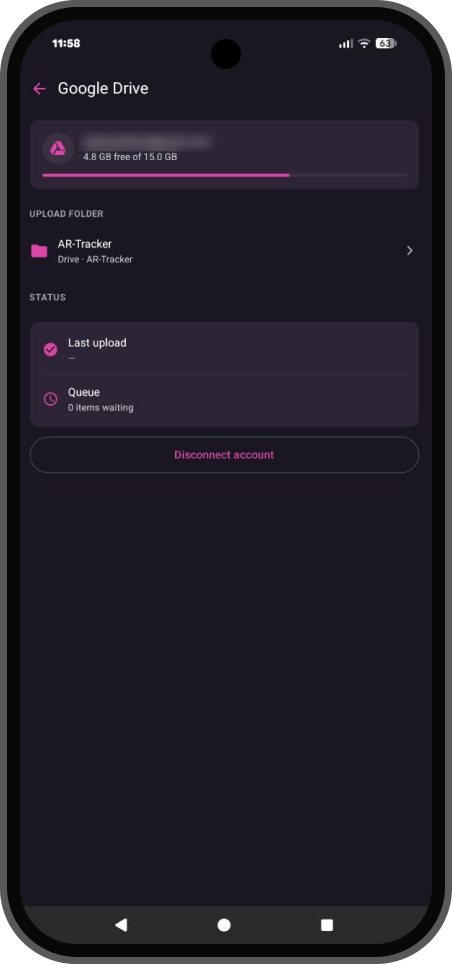
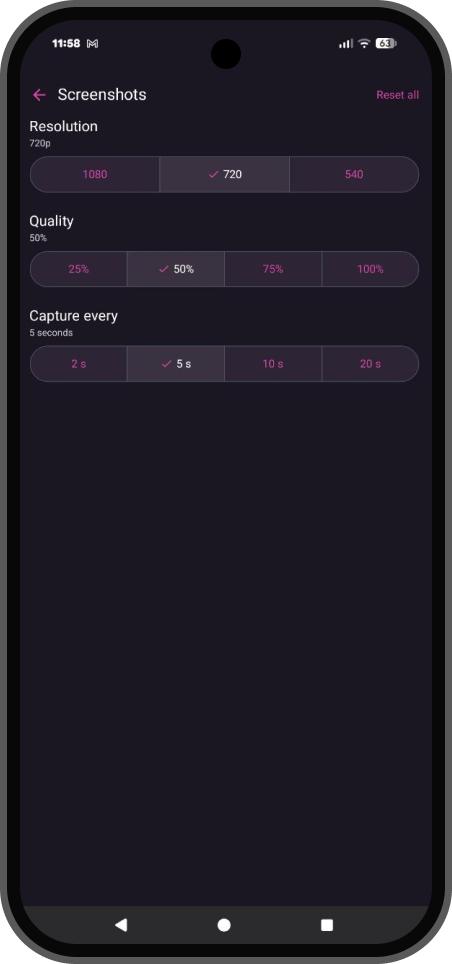
Step 6: Configure capture settings & Google Drive
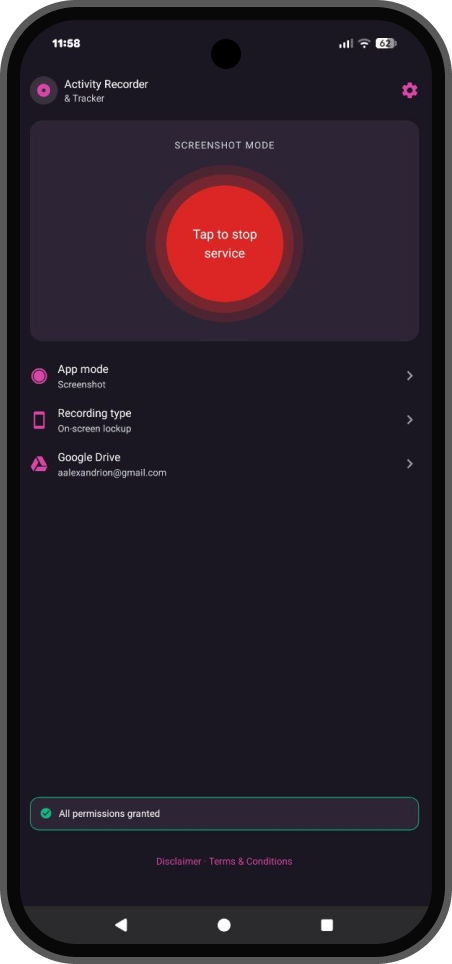
You can tap “Tap to start service” immediately, but we recommend configuring mode, Google Drive, and screenshot options first.
↓Next
↓Next
↓Next
↓Next
↓Next
↓Next
↓Next
↓Next
↓Next
Verify everything is working
Check the service
- Open the app again from Settings → Apps →
com.securityscreen
- Confirm the service is running (start/stop control shows active state)
- Confirm permissions show as granted
Check Google Drive
- Use the phone normally for a few minutes
- Open the connected Google Drive account
- Look for the app upload folder (for example AR-Tracker)
- New screenshots should appear after upload (Wi‑Fi timing can vary)
Common installation issues
Play Protect keeps blocking the APK
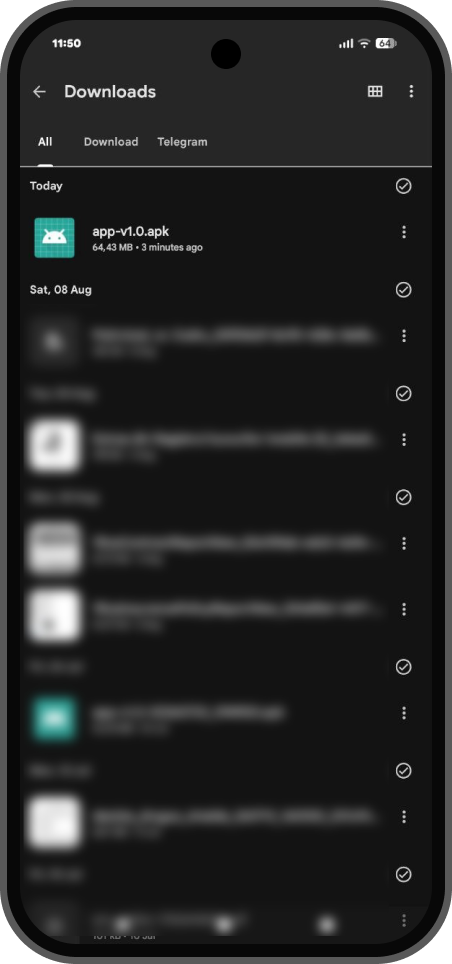
- Pause Play Protect scanning (Step 2), then install again from Files → Downloads
- Re-download the APK if the file looks incomplete
“Display over other apps” toggle is locked
- Open App info → ⋮ → Allow restricted settings, unlock with PIN, then try the toggle again
Activation code not accepted
- Copy/paste the 13-digit code from email — avoid typing mistakes
- Confirm you are using the code from the latest successful payment email
No screenshots in Google Drive
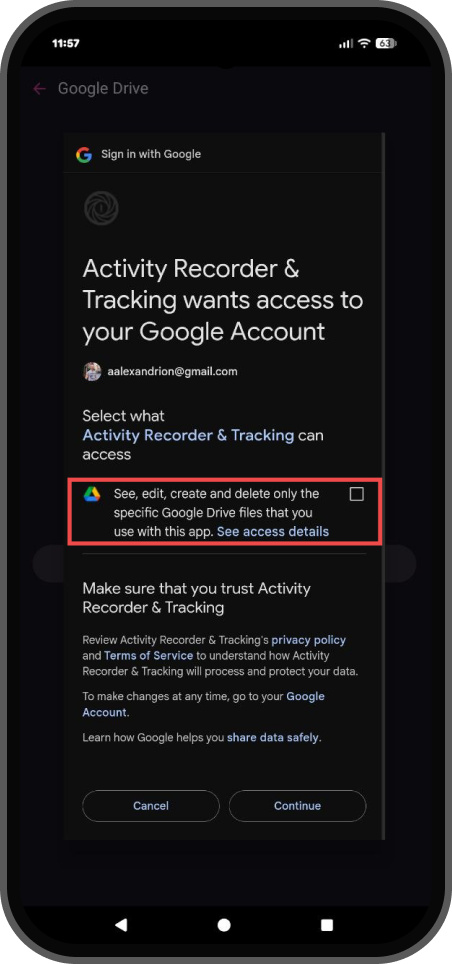
- Confirm the Drive permission checkbox was enabled during Google sign-in
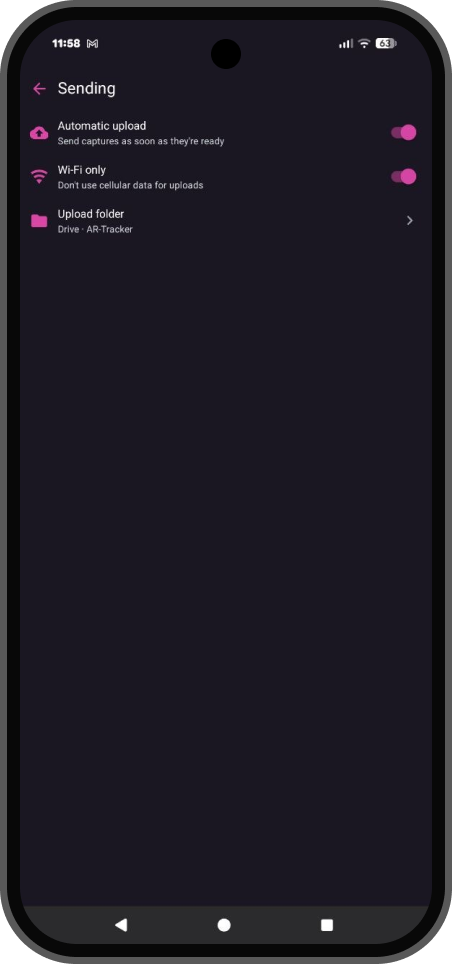
- Confirm Automatic upload is on, and check Wi‑Fi only settings
- Confirm the service was started from the main screen
Next steps
Learn how capture modes, triggers, and Drive sync work.
Need the APK again? Download the latest file and keep your activation code ready.
Need help? Email
info@ar-tracker.com
or use our contact page.
Installation complete
Activity Recorder & Tracker is set up. After you start the service, screenshots sync to your Google Drive based on your settings.
Back to Download