Everything you need to know about our lightweight screenshot monitoring app — how it captures screen activity, where your files go, and what makes it different.
What Is Activity Recorder & Tracker?
Activity Recorder & Tracker is a background monitoring Android only app designed to capture what happens on a phone screen through automatic screenshots (with video recording planned for a future version). Whether you are a parent wanting to see what your child encounters online, a business owner monitoring work devices, or someone tracking their own phone usage, our app gives you visual proof of screen activity without complicated features you do not need.
Unlike traditional monitoring apps that track location, read messages, or log keystrokes, Activity Recorder & Tracker focuses on one thing: showing you what is on the screen. Screenshots and videos tell the complete story — what apps are being used, what content is being viewed, and how time is being spent.
How Activity Recorder & Tracker Works
Simple setup, invisible operation — from purchase to recording.
Step 1: Purchase and Activation
Complete the one-time $12 payment on our website
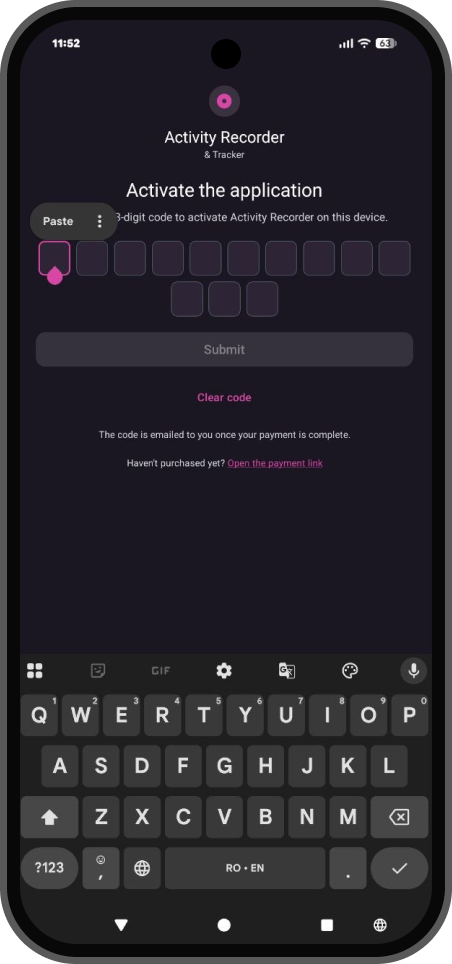
Receive a unique 13-digit activation code via email (e.g., ab3k9m2x7p4q1)
Download the APK file with installation instructions
Install the app on the target device and enter your activation code
Important: Each activation code works on only one device and cannot be reused. This ensures your purchase stays secure and private.
Step 2: Grant Permissions
After activation, the app requests essential permissions through a single system prompt. You will enter the device security password and the system automatically grants all required permissions. This one-click setup makes installation fast and eliminates technical complexity. Activate the Accessibility services separately.
Required Permissions:
Accessibility Service — To detect when apps are opened and closed
App Usage Access — Shows which apps were used and for how long
Draw over Apps — Allows the monitoring services to run visibly over other apps when needed
Battery Optimization — Keeps the monitoring service running continuously without being stopped by Android
Step 3: App Becomes Invisible
Once permissions are granted, Activity Recorder & Tracker immediately hides from plain sight. Here is how it maintains invisibility:
Disguised name: The app changes its name to com.securityscreen — appearing as a system security component
Hidden from app list: It will not appear in the device's standard app list or home screen
Silent operation: No notifications, no visible indicators, no performance slowdowns
Background screenshots: Captures are taken invisibly and do not appear in the standard media gallery
Auto-restart: Starts automatically when the phone reboots, requiring no manual intervention
Note: The app can only be accessed through Settings → Applications → App Info → Open App button, making it virtually undetectable during normal phone use.
Recording settings
Step 4: screenshot capture now, with more modes coming soon — adjust anytime from the Main Page.
Recording modes
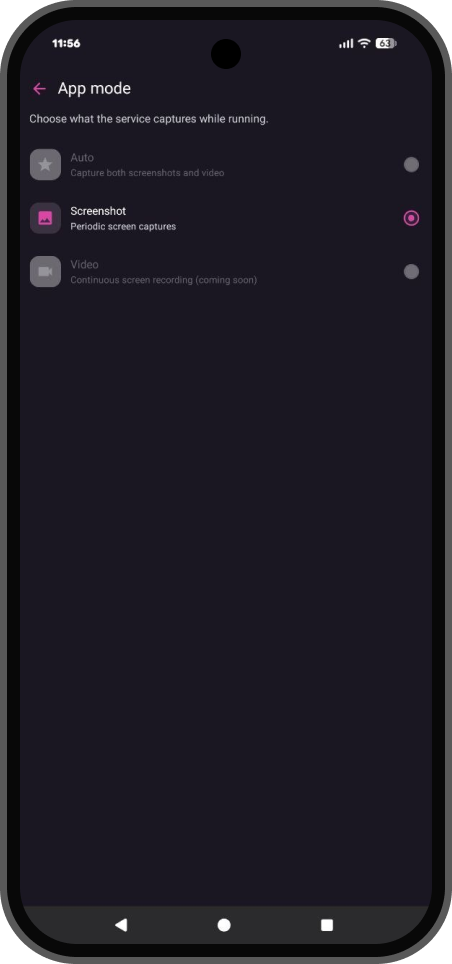
1. Screenshot Mode (Maximum Anonymity)
Screenshot Mode captures still images of the screen at intervals you define (every 2, 5, 10, or 20 seconds). This mode is completely invisible and extremely difficult for the device owner to detect.
How screenshots are captured:
Silent background capture — No shutter sound, no flash, no visible indicator
Custom intervals — Choose 2, 5, 10, or 20 seconds between captures (default: 5 seconds)
Invisible storage — Screenshots are not visible in the phone's photo gallery
Best for:
Maximum stealth monitoring where detection must be avoided
Older devices with limited storage or processing power
Long-term monitoring where you can review hundreds of screenshots later
2. Coming in the next app version
Auto Mode and Video Mode will be available in a future update. Until then, Activity Recorder & Tracker focuses on screenshot monitoring for maximum anonymity.
Recording triggers (when to record)
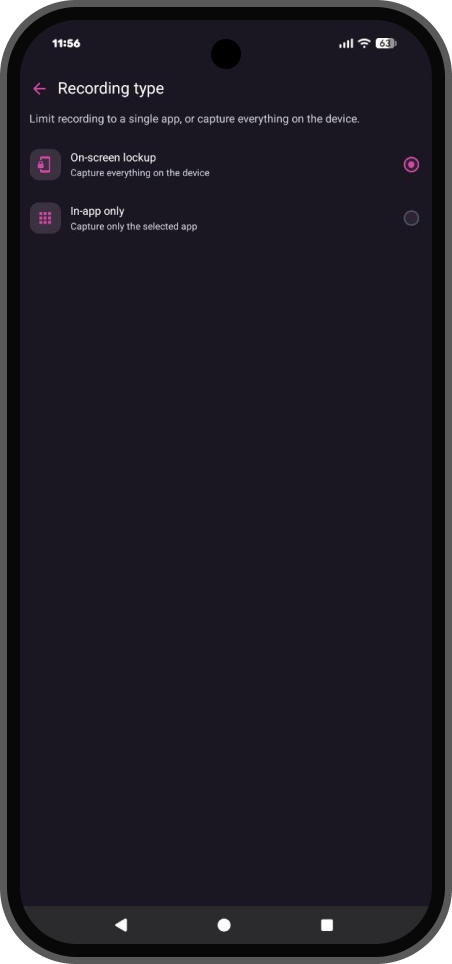
Recording triggers define when the app starts capturing. You can choose between two trigger types:
1. On Screen Unlock (Default)
Recording starts automatically whenever the device screen is unlocked and stops when the screen is locked or turned off.
How it works:
In Screenshot Mode: First screenshot is taken after the defined interval (e.g., 5 seconds after unlock)
Future Video Mode: When available, recording will begin immediately when the screen is unlocked
Best for:
Comprehensive monitoring of all screen activity
Parents who want to see everything their child does on the phone
2. In Selected Apps (Targeted Monitoring)
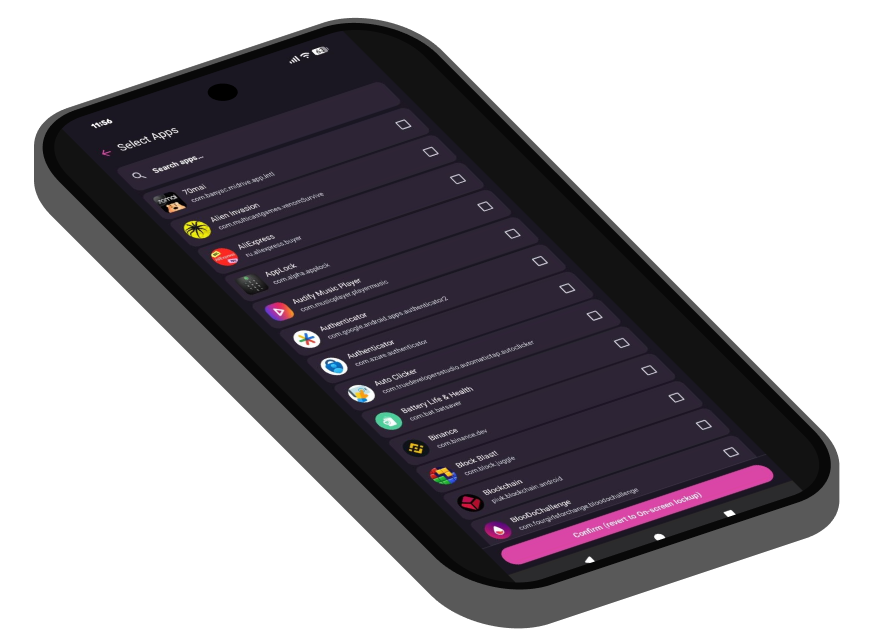
Recording occurs only when specific apps are opened and actively in use. You select which apps to monitor, and the app ignores all other activity.
How it works:
You select target apps from a list (e.g., Instagram, TikTok, WhatsApp, Telegram, Facebook)
No limit on number of apps you can select
Recording starts when any selected app is opened, stops when the app closes
Best for:
Parents concerned about specific social media apps
Businesses monitoring work-related apps only
Reducing storage usage by capturing only what matters
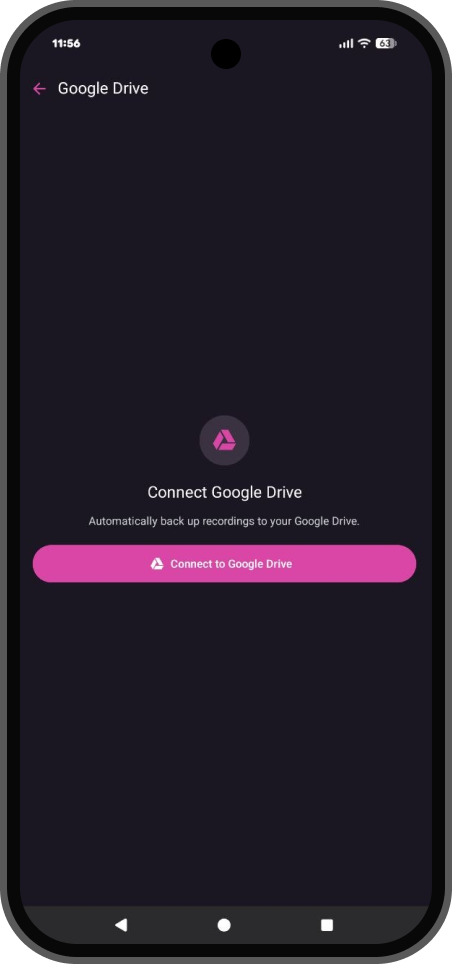
Step 5: Connect Google Drive for Cloud Storage
Activity Recorder & Tracker integrates directly with your Google Drive, ensuring all recordings are safely stored in your personal cloud. This is what makes the app truly private — your files go to your cloud, not to company servers.
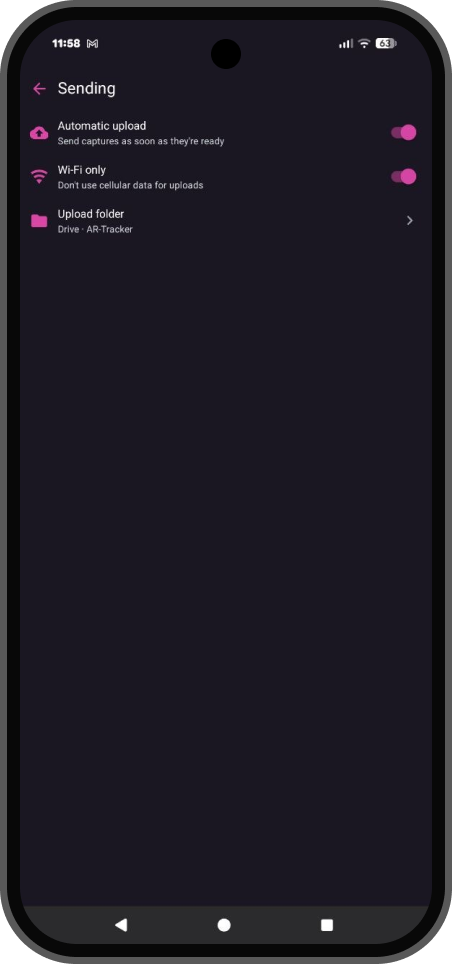
How Google Drive sync works:
Connect your Google account: One-time authentication through Google's secure login
App creates a dedicated folder: Named "Activity Recorder & Tracker" in your Google Drive root
Automatic uploads: Files sync when device connects to WiFi (or mobile data if you enable it)
Local temporary storage: Files are stored on the device until they are uploaded, then optionally deleted
Organized by date: Files are automatically sorted by date for easy review
Privacy and security:
We never see your files: App developers have zero access to your Google Drive
Your account, your data: Only you can access the recordings in your Drive
Optional restricted access: You can limit app access to only the AR&T folder
No deletion by app: The app never deletes files from Google Drive — you manage your storage
Upload settings:
WiFi only (default): Uploads only when connected to WiFi to avoid mobile data charges
WiFi or mobile data: Upload using either connection for faster sync
Storage management: You are responsible for ensuring enough Google Drive storage is available. If your Drive is full, files will remain on the device until space is freed.
What Activity Recorder & Tracker Records
The app captures visual screen activity only. Here is exactly what it records and what it does not.
App usage: Which apps are opened, how long they are used, what happens inside them
Videos and images: What videos they watch, what images they view
Audio: Sound from calls, videos, games (optional, can be disabled)
What it does not record
Location tracking: No GPS monitoring, no location history
Keystrokes: No keylogger, does not capture typed passwords or text
Contacts: Does not access or store contact lists
SMS / Call logs: Does not read SMS messages or call history (only visual screenshots if visible on screen)
Password managers: Cannot capture password vaults or secure authentication screens
Real-world user stories
How different people use Activity Recorder & Tracker.
SarahParent of two teenagers
“
I wanted to see what my kids were watching on YouTube and who they were talking to on Instagram, but I didn't need GPS tracking or to read every text message. Activity Recorder & Tracker shows me exactly what they see on their screens through automatic screenshots. It's affordable, invisible, and gives me peace of mind without being overly invasive.
Setup: Screenshot mode every 10s · In selected apps (Instagram, TikTok, YouTube, WhatsApp)
MikeSmall business owner
“
I provide company phones to my employees but needed to ensure they weren't leaking confidential information or spending work hours on games. Activity Recorder & Tracker costs $12 per device instead of $15/month per device like other apps. The screenshot feature shows me exactly how employees are using work phones, and the app stays invisible so it doesn't impact morale.
Setup: Screenshot mode every 10s · On screen unlock
JessicaProductivity tracker
“
I wanted to understand my own phone habits and see how much time I waste on social media. Activity Recorder & Tracker creates a visual diary of my screen time. Reviewing the screenshots at the end of each week helps me recognize patterns and make better choices about my phone usage.
Setup: Screenshot mode every 5s · On screen unlock
Ready to Start Monitoring?
Get Activity Recorder & Tracker for just $12 — one-time payment, your cloud only, completely invisible, no subscription.
✓ One-time payment✓ Your cloud only✓ Completely invisible✓ No subscription
Legal notice: Monitoring software must be used in compliance with local laws. Install only on devices you own or where you have obtained informed consent from authorized users. Activity Recorder & Tracker does not provide legal advice; consult a qualified attorney for workplace, parental, or personal use cases in your jurisdiction.